
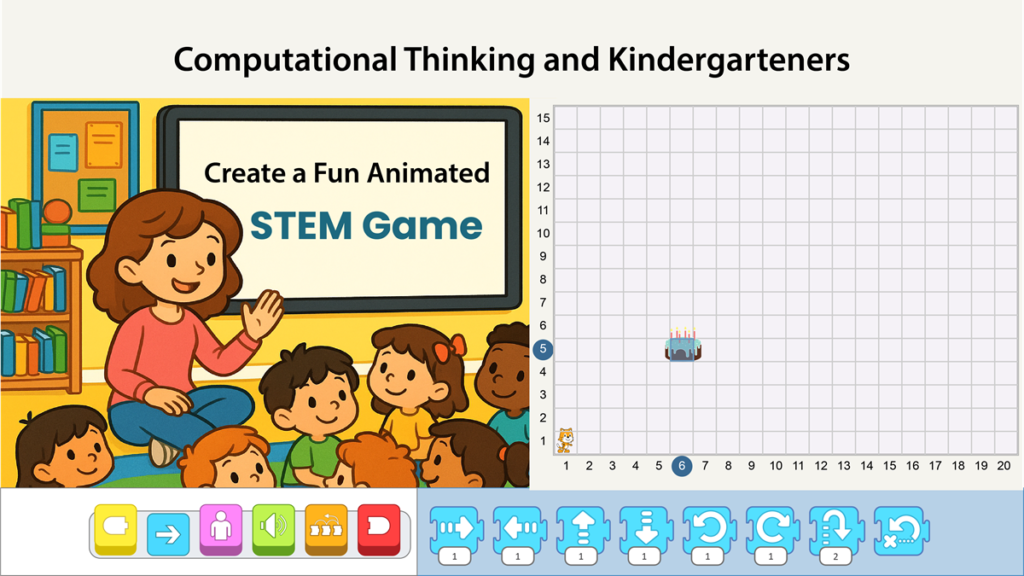
You can integrate STEM in kindergarten with just one iPad and ScratchJr. ScratchJr is a free block-based coding app designed for young learners in kindergarten and the primary grades. Make sure it is installed on your device before teaching this STEM lesson.
You may already be using offline coding activities with your students. If not, and you want ideas for getting started, take a look at the recent TechnoKids blog post that explains how to turn a simple grid into an engaging and meaningful way to build computational thinking skills. This article takes the same idea of using a static grid and transforms it into an interactive and animated learning experience. All you need is an iPad, ScratchJr, and a way to project the screen so the entire class can view the program.
How to Create a Fun Animated STEM Game for Kindergarteners
Step 1: Show the Grid in ScratchJr
After opening ScratchJr, turn on the grid. A number line will appear along the left and the bottom edges of the stage. The grid divides the stage into squares. Each square equals one step. This helps learners count.
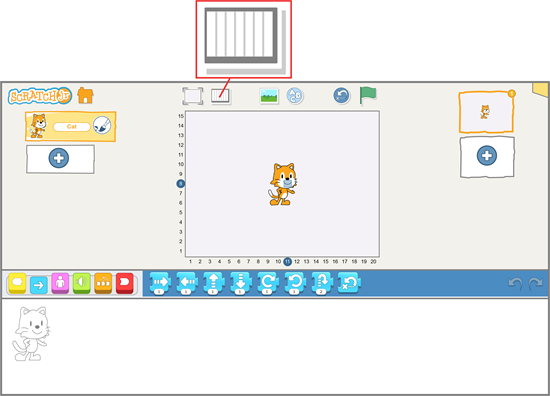
You will notice the character or sprite has a blue box in the center. This box is the anchor point that marks the character location. When the program begins, the character might appear eight steps up and eleven steps to the right from the bottom corner of the stage. This is too confusing for young learners, so you will make a few adjustments.
Step 2: Shrink the Character to Fit Into a Box on the Grid
To support early learners, shrink the sprite until it matches the height of the blue anchor box. This makes counting and movement easier to understand.
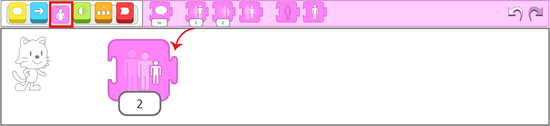
How to shrink the sprite:
- Click Looks.
- Drag the Shrink block into the script area.
- Click it many times, until the sprite reaches the smallest size.
- Drag the Shrink block out of the script area when finished.
Step 3: Move the Character to the Bottom Left Corner
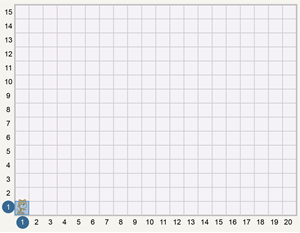
To simplify the task, place the sprite at the bottom left corner of the stage. This position is 1 on the vertical number line and 1 on the horizontal number line. This becomes the starting point. This is a good place for kindergarteners to begin problem solving.
Step 4: Insert a Sprite to Act as the Goal
Next, add a goal. The goal is the spot the character will move toward. You may want to choose a theme or storyline before selecting a sprite.
Storyline Ideas
Here are some examples:
- The cat is lost. Help him find his way to his owner (insert a girl or boy sprite).
- It is the cat’s birthday. Help her blow out the candles on the birthday cake (insert the cake sprite).
- The cat is on an adventure. Help him blast off into space. (insert the rocket ship sprite)
- The cat wants to play with its friend (insert a dog sprite).
How to insert a goal sprite:
1. Click to add a new character.

2. Select a sprite from the Library and click the checkmark.
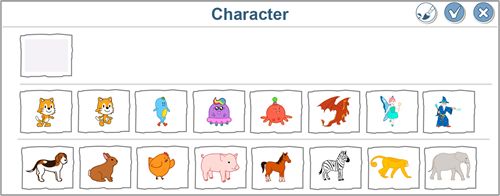
3. Shrink the sprite so it fits inside a single grid square. You will need to use the Shrink block!
4. Place the sprite on the stage.
TIP: Place the goal close to the character for an easier challenge or further away for a more difficult one.
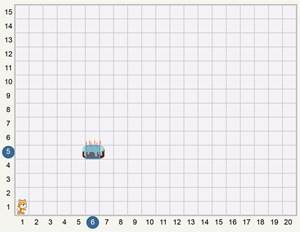
Step 5: Sequence Coding Blocks to Reach the Goal
Describe the problem to students, then guide them as they build a script that moves the cat. Use questions to help them break or decompose the problem into smaller steps.
- IMPORTANT! Select the cat sprite FIRST!

Move the Character Up
- Ask, “What direction does the cat need to move first, up or down?“
Drag the Move Up block into the script area.
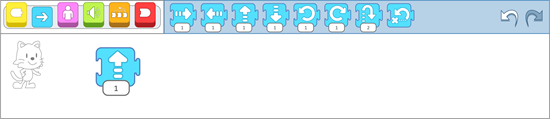
- Ask, “How many steps does the cat need to move up?“
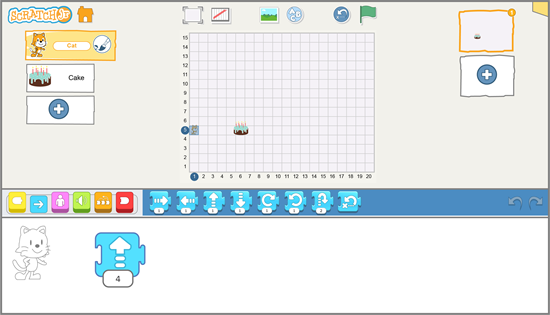
Point to each square above the cat and count together until reaching the same row as the goal.
- Enter the number of steps into the Move Up block.
Click the coding block or click Go (green flag) to test it.
- Ask, “Is the cat in the same row as the cake?” If not, recount and adjust the number. Move the cat back to 1:1 before testing the script again.
Move the Character Right
- Ask, “What direction does the cat need to move next, left or right?“
- Connect a Move Right block after the Move Up block.
- Ask, “How many steps does the cat need to move right?”
Point to each square beside the cat and count toward the goal.
- Enter the number of steps into the Move Right block.

- IMPORTANT! Drag the cat back to 1:1 or click Reset Characters to return the character to the starting point.
Now you can click the script or click Go (green flag) to test the solution.
- Ask, “Is the cat at the goal?” If not, revise the number of steps.
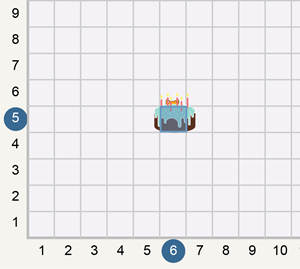
Tips for Creating New Coding Challenges
Students can develop strong computational thinking skills by solving variations of the problem. Try the following:
- Code a different route to the goal.
- Drag the goal to a new end point.
- Add an obstacle the character must move around.
- Build a script that is incorrect. Ask the students to fix the number of steps in the coding block.
Computer Science Standards and STEM in Kindergarten
If your school follows the Computer Science Teachers Association’s K-12 standards, you will be pleased to know this simple activity targets several identifiers in the Algorithms and Programming concept.
CSTA Identifiers
1A-AP-10 Develop programs with sequences and simple loops, to express ideas or address a problem: Students meet this standard when they sequence blocks to move the character from start to finish.
1A-AP-11 Decompose (break down) the steps needed to solve a problem into a precise sequence of instructions: Although the word decompose may sound advanced, it simply means breaking a task into smaller parts. Your students did this every time they identified direction, chose a block, and decided the number of steps.
1A-AP-14 Debug (identify and fix) errors in an algorithm or program that includes sequences and simple loops: Each time students run the program, they see whether the character reaches the goal. If not, they adjust the steps. This is exactly what debugging means.
1A-AP-15 Using correct terminology, describe steps taken and choices made during the iterative process of program development: Students used terms such as up, down, left, right, and number of steps. They tested their scripts repeatedly, made changes based on what they observed, and refined their plan. This is the iterative process in action.
ScratchJr Courses
Want more coding activities. TechnoKids has several courses that you can use for primary students including TechnoWhiz and TechnoTales.